AlterPaste
on iPhone
iPhone apps can't watch the clipboard, so you start each clean. Share a link, tap Paste, or run a shortcut.
Also see AlterPaste on the Mac.
Clean a link from the share sheet
The quickest way. Share a page, post, or message with a link, and the clean link is on your clipboard.
In Safari
- Tap the Share button in the toolbar, the square with an arrow pointing up.
- Don't see it? With the compact tab layout, Share is in a menu. Tap ••• first, then Share.
- Tap AlterPaste in the row of apps.
In other apps
Tap the Share button or Share, then AlterPaste.
The sheet closes with a short vibration. Nothing else appears. The clean link is on your clipboard, ready to paste. You only see a screen if the shared item has no link in it.
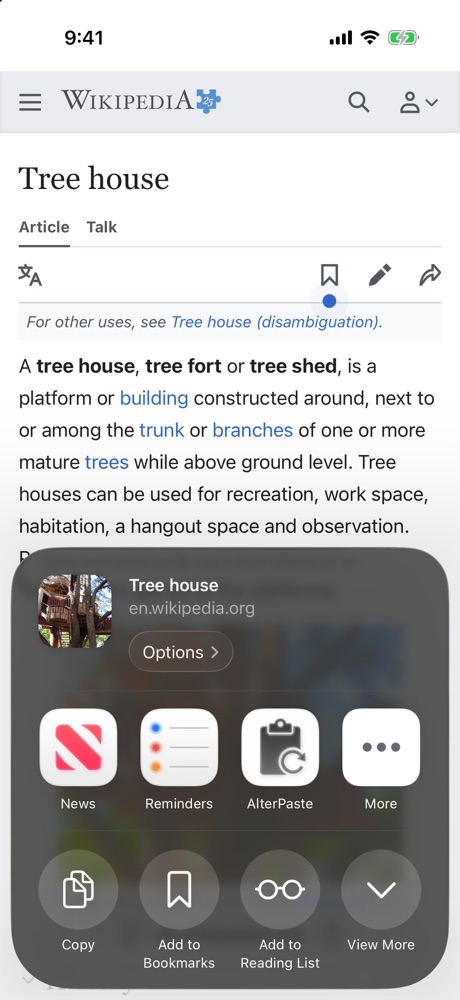
AlterPaste isn't in the row
Scroll the row of apps to the end, tap More, and turn on AlterPaste.
Paste a link into the app
For a link you already copied.
- Copy a link anywhere. Safari's Copy works too.
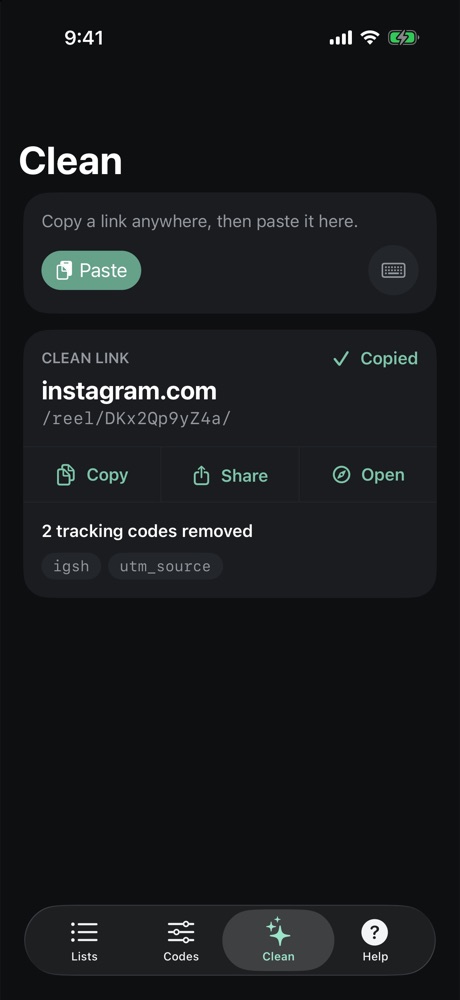
- Open AlterPaste. On the Clean tab, tap Paste.
- The clean link appears, with the codes that were removed or replaced. It's already copied back to your clipboard.
From there, tap Copy, Share, or Open. To type a link instead, tap the keyboard button next to Paste.
Email yourself a clean link
Share a page, an Instagram post, or anything with a link. An email arrives with the page title as the subject and the clean link as the body. Nothing opens on screen.
AlterPaste adds a Clean Link action to the Shortcuts app. This shortcut uses it with three actions in all.
The finished shortcut
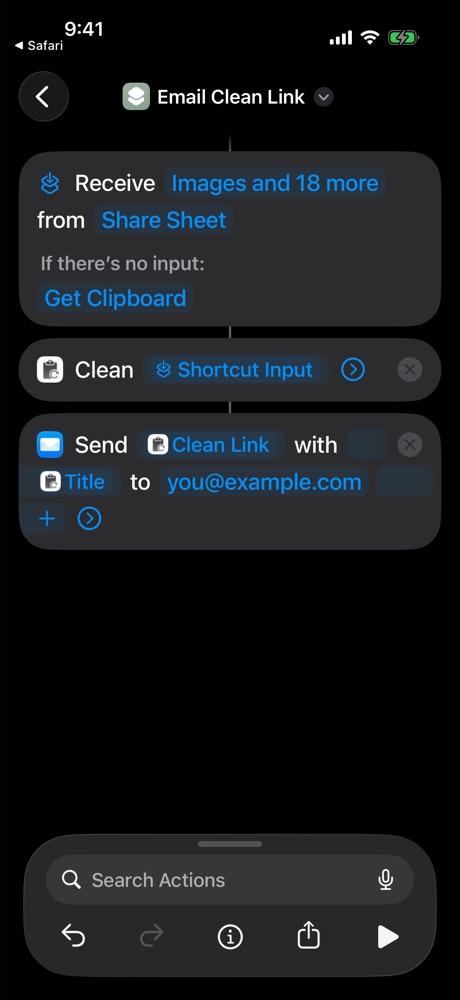
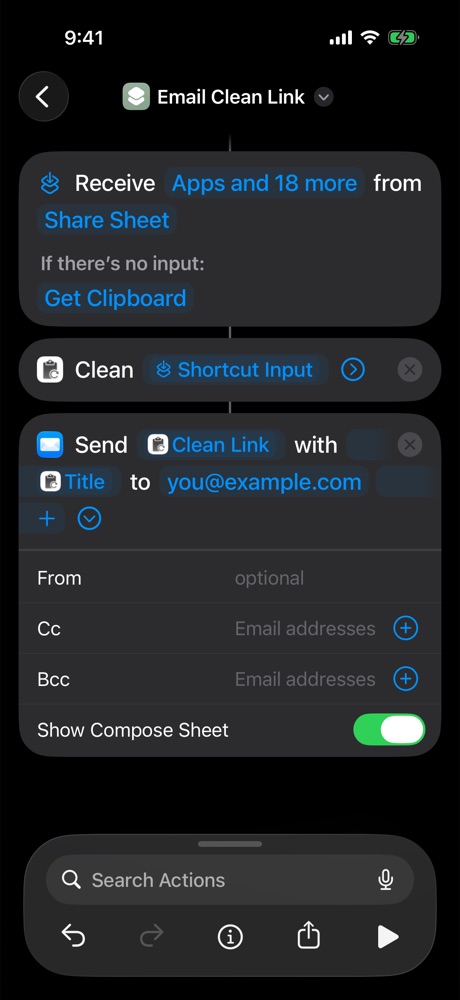
Receive all input types from Share Sheet
  If there's no input: Get Clipboard
Clean Link: Shortcut Input   (Get Title: on)
Send Email
  To:      you@example.com
  Subject: Clean Link → Title
  Message: Clean Link
  Show Compose Sheet: off
Build it
- Open Shortcuts and tap + to make a new shortcut. To name it, tap New Shortcut at the top, then Rename. For example, "Email Clean Link".
- In the action list, tap AlterPaste, then Clean Link. You can also search for it.
- Tap the i (Details) button at the bottom, turn on Show in Share Sheet, and tap the checkmark.
- A Receive … from Share Sheet action now sits above Clean Link.
- Every input type is on to start with, shown as something like "Apps and 18 more". Leave it. If you narrow it, keep URLs, Text, and Safari Web Pages on.
- Under "If there's no input", choose Get Clipboard. Then running the shortcut by itself cleans whatever link is on your clipboard.
- In Clean Link, tap Input, then Select Variable, then Shortcut Input. Tap the arrow on the action to check that Get Title is on. It reads the page to find a title for the subject.
- Search for Send Email and add it. It reads "Send Clean Link with Subject to Recipients". The message is already the clean link.
- Recipients: tap it and type your address.
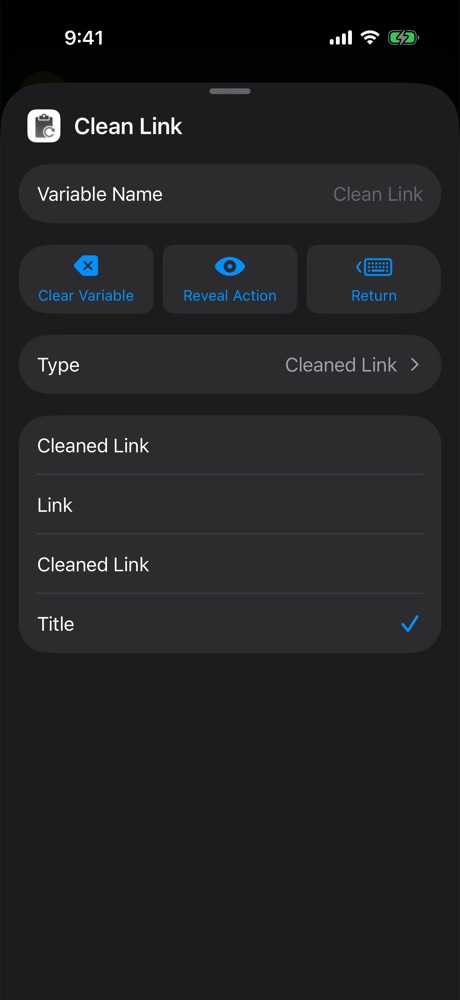
- Subject: tap it, then tap Clean Link in the bar above the keyboard. In the menu that opens, choose Title.
- Tap the arrow on the action and turn off Show Compose Sheet. This is what makes it send without a screen.
Use it
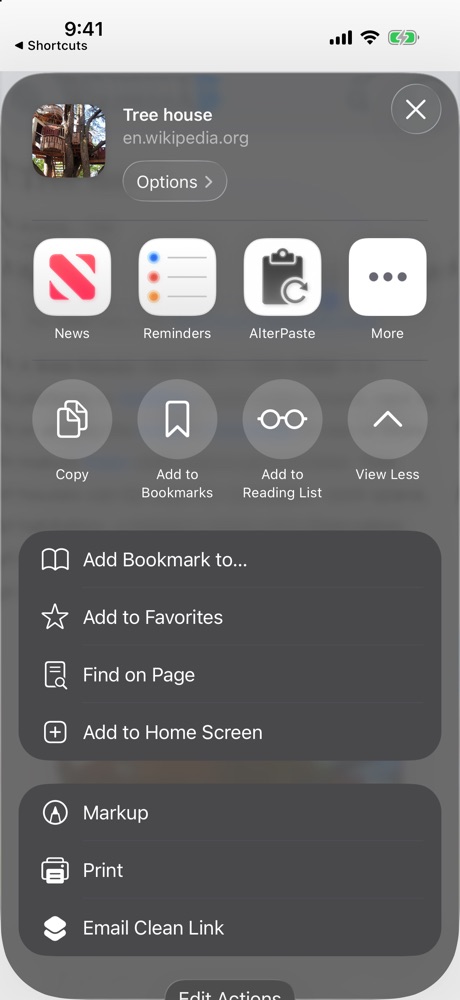
Tap Share in any app. Below the app icons, tap View More if you see it, then tap your shortcut in the list of actions. The email goes out with no screen.
If Shortcuts asks for permission the first time it runs, choose Always Allow so later runs stay silent.
A second address
For work, or anyone else: in Shortcuts, long-press the shortcut, tap Duplicate, rename the copy, and change its recipient. Both appear in the share sheet.
Also include the original link
Add a line to the message and insert Clean Link, then tap the token and choose Link. That's the link before cleaning.
Troubleshooting
- Clean Link has no Get Title switch, or its token only offers Text, File Size, and similar parts.
- Shortcuts is still using an older version of the action. Open AlterPaste once and force-quit Shortcuts. Then delete the Clean Link action from the shortcut, add it again, and re-insert any Clean Link tokens in later actions.
- The cleaned Instagram link still has
?igsh=. - Turn on the Social list in AlterPaste's Lists tab.
- The shortcut isn't in the share sheet.
- Turn on Show in Share Sheet in the shortcut's details, and make sure its Receive types include URLs.
- The shortcut stops with "No http or https link found in the input."
- What you shared or copied has no web link in it. The shortcut stops before Send Email, so nothing is sent.